
Analytics presets and modes
Choose the right AI preset for the camera view, balance speed and accuracy with modes, adjust sensitivity and advanced parameters.
The analytics of each camera are set in Settings → Analysis. The current settings are summarized in the Analysis panel under the picture, with the time spent per analyzed frame.
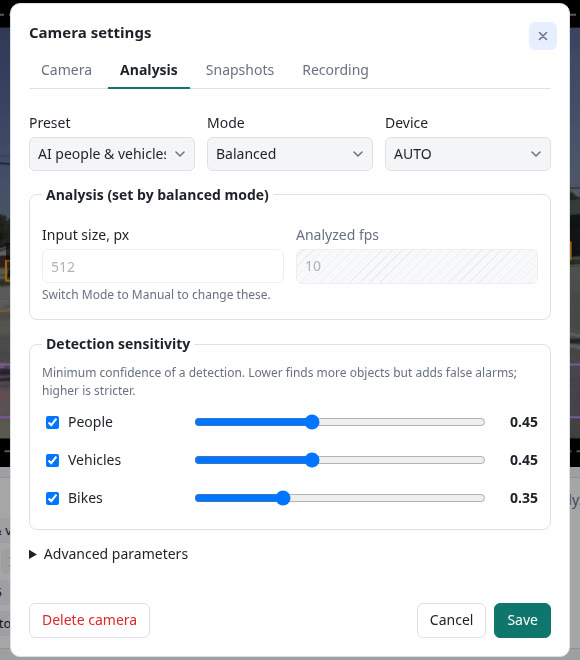
Presets
A preset is a neural network trained for a kind of camera view, with settings that suit it. Pick the one closest to how your camera sees the scene.
| Preset | Detects | Best for |
|---|---|---|
| AI people & vehicles (universal) | People, bikes, cars, vans, trucks, buses | Any angle, including eye-level cameras. The most robust, but needs about four times the CPU of the fast presets |
| AI people & vehicles (street) | People, bikes, vehicles with type | Street cameras: vehicles seen from the side at eye level, tilted and overhead views. Recognizes buses and vans better |
| AI people & vehicles (highway) | People, bikes, vehicles with type | Cameras mounted high above a road: highways, bridges, poles. Fast, allows high frame rates for fast traffic |
| AI parking lots | Vehicles (also parked and slow), people, bikes | Parking lots seen from above or at an angle, with cars partly hidden by others |
| AI people overhead | People | Cameras looking straight down at an entrance. Accurate in crowds, because people do not hide each other |
| AI people tilted | People | Tilted cameras over entrances and corridors |
| Faces | Faces with gender and age group | Eye-level cameras at close range, for audience analytics. No identities are stored or compared |
| Motion (no AI), tilted camera | Any moving object | Old or weak computers, simple scenes with little background movement. No object classes |
| Motion (no AI), overhead camera | Any moving object | The same, for cameras looking straight down |
At night, on low-light streets, try universal: it keeps finding vehicles where the faster presets lose them.
Modes
The mode trades accuracy for speed. It sets the size of the picture given to the neural network (input size) and how many frames per second are analyzed.
| Mode | What it does |
|---|---|
| Accuracy | Largest input and most frames. For small or fast objects and for few cameras per computer |
| Balanced | The default. Good accuracy for most scenes |
| Speed | Smaller input and fewer frames. More cameras on the same computer |
| Auto (by CPU load) | Starts at Balanced, steps down when the computer cannot keep up, and steps back up when there is room. Recommended for computers with many cameras |
| Manual | You set Input size, px and Analyzed fps yourself |
A larger input finds smaller and farther objects but costs more CPU. Analyzed fps 0 means every frame. Fast traffic needs more frames per second than people walking.
Device
Device chooses where the neural network runs. Auto uses an NVIDIA graphics card when there is one and the CPU otherwise. See System requirements.
Detection sensitivity
The minimum confidence of a detection, separately for people, vehicles and bikes. Lower values find more objects but add false detections; higher values are stricter. Change it in small steps (0.05) and watch the result. Motion presets have a single sensitivity instead: higher finds fainter movement but reacts more to shadows, rain and noise. The Faces preset adds a gender confidence: faces the model is less sure about get no gender.
Advanced parameters
Advanced parameters lists every setting of the analytics with its default and allowed range: tracking, which classes are detected, the object point tested against lines (bottom or center), how repeated crossings are handled, the tailgating interval, the zone leave delay, camera obstruction detection, the heatmap grid and more. Changed values are highlighted; ↺ returns a parameter to its default.
Some useful ones:
| Parameter | Use it when |
|---|---|
| Count each object at most once per line | People walk back and forth across the line and you want unique passers-by |
| Count a crossing only if the object was first seen on the opposite side | You want to ignore objects that appear right at the line |
| Object point tested against lines and zones (anchor) | Overhead cameras, where the center of the box works better than the bottom |
| Detect people / vehicles / bikes | You want to count only one kind of object |
Camera obstructed
CountVue raises a Camera obstructed event when the picture loses most of its usual detail: the lens is covered or sprayed, or the camera was turned to a wall. Use it with alerts and webhooks to find tampered cameras.
Updated · View as Markdown · Something missing? Ask us