Locations and cameras
Add computers to your account, see their status and health, watch cameras live, switch paid channels, manage, restart, disconnect and delete locations.
A location is one computer running CountVue Live or CountVue Survey, connected to your account. The Locations page lists them with their cameras (Live) or analyses (Survey), whether they are online, and how long ago an offline one was last seen.
Add a location
- On the computer, start CountVue and choose Connect to CountVue Portal. It shows a code, valid for 15 minutes.
- In CountVue Portal, open Locations → Add a location and enter the code.
- Name the location as you want to see it in reports and choose its time zone, then press Add.
Or sign in from the computer's connection screen, which adds it in one step. See Connect to CountVue Portal. Adding locations needs the Connect computers permission.
The location page
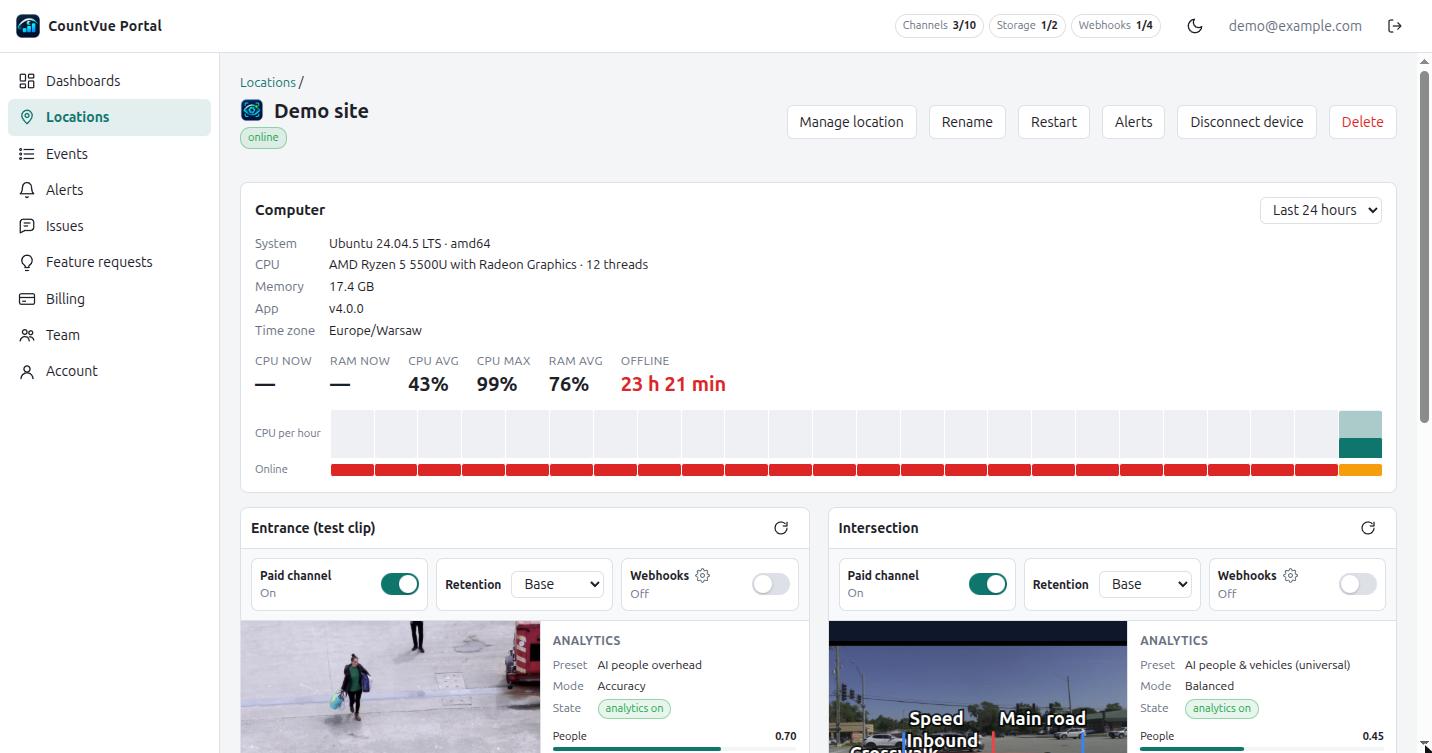
Open a location to see:
- Status: online or offline, the version of its app, and health charts: CPU load per hour and minutes offline per hour.
- Cameras: each with its newest picture (Take a new preview now fetches a fresh one), status, preset and sensitivity, lines and zones (Triggers), snapshots and recording settings.
- Live video of each camera, with lines, zones and counts. See Remote viewing.
- Manage location opens the full interface of the computer in a new tab, to add cameras and change everything remotely.
Changes made in the Portal reach the computer at once when it is online.
Paid channels
Each Live camera needs a channel of your Live subscription to keep events and send counts. On the location page, switch Paid channel on for the cameras that should count. If none are left, add channels in Billing.
A camera without a paid channel shows Not paid: new events are not collected, and the history from while it was paid stays.
Retention per camera
Each camera keeps 15-minute data for the plan's retention (Base). With Extended Storage units you can keep a camera's data 3, 6 or 9 months longer (+3 mo, +6 mo, +9 mo). See Data retention.
Webhooks and email alerts of a camera
Webhooks & alerts on a camera opens its panel: the webhook that receives its events, and email alerts for chosen events.
Rename, restart, disconnect, delete
| Action | What happens | Permission |
|---|---|---|
| Rename | Changes the name in all reports | Locations |
| Restart | The app on the computer starts over with every camera. Offline for a few seconds; counting pauses meanwhile | Locations |
| Disconnect | The computer stops sending; the location and its data stay. It can join again with a new code | Locations |
| Delete | Deletes the location with all its cameras and data. Cannot be undone | Delete |
Delete a location
Deleting removes the location's reports data for good. If you only want to move the computer to another account, disconnect it instead and connect it to the other account.
Account time zone
Each location has its own time zone; reports use it unless a report chooses another. The account's default time zone is set on the Account page.
Updated · View as Markdown · Something missing? Ask us