
Recording and playback
Record camera video always, on a schedule or on events, set the disk space, play recordings with events on the timeline and save clips.
CountVue Live can record the camera stream on the computer, so you can look back at what happened around an event.
Recording modes
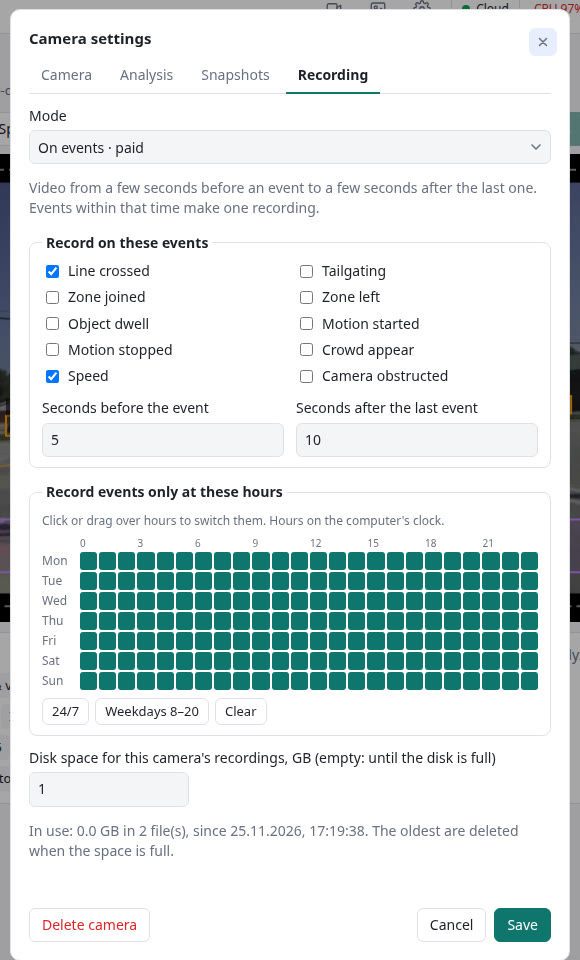
Open the camera's Settings → Recording and choose a Mode:
| Mode | What is recorded | Plan |
|---|---|---|
| Off | Nothing | |
| Always | The stream around the clock | Free |
| On schedule | The stream during the hours you mark | Free |
| On events | From a few seconds before an event to a few seconds after the last one | Paid channel |
- The stream is recorded as it comes from the camera, without re-encoding, in one-minute files. Recording costs almost no CPU.
- On schedule: click or drag over the hours of the week grid to switch them on or off. 24/7, Weekdays 8–20 and Clear are quick presets. Hours follow the computer's clock.
- On events: choose the event types, Seconds before the event and Seconds after the last event. Events close together make one recording. You can also limit it to some hours of the week.
Disk space
Set Disk space for this camera's recordings, GB, or leave it empty to record until the disk is full. When the limit is reached, the oldest recordings are deleted. Independently of the limit, when less than 5% of the disk is free, the oldest recordings are deleted.
The recordings folder is set in the computer's Settings. New recordings go to the new folder; earlier ones stay where they are and can still be played.
Play recordings
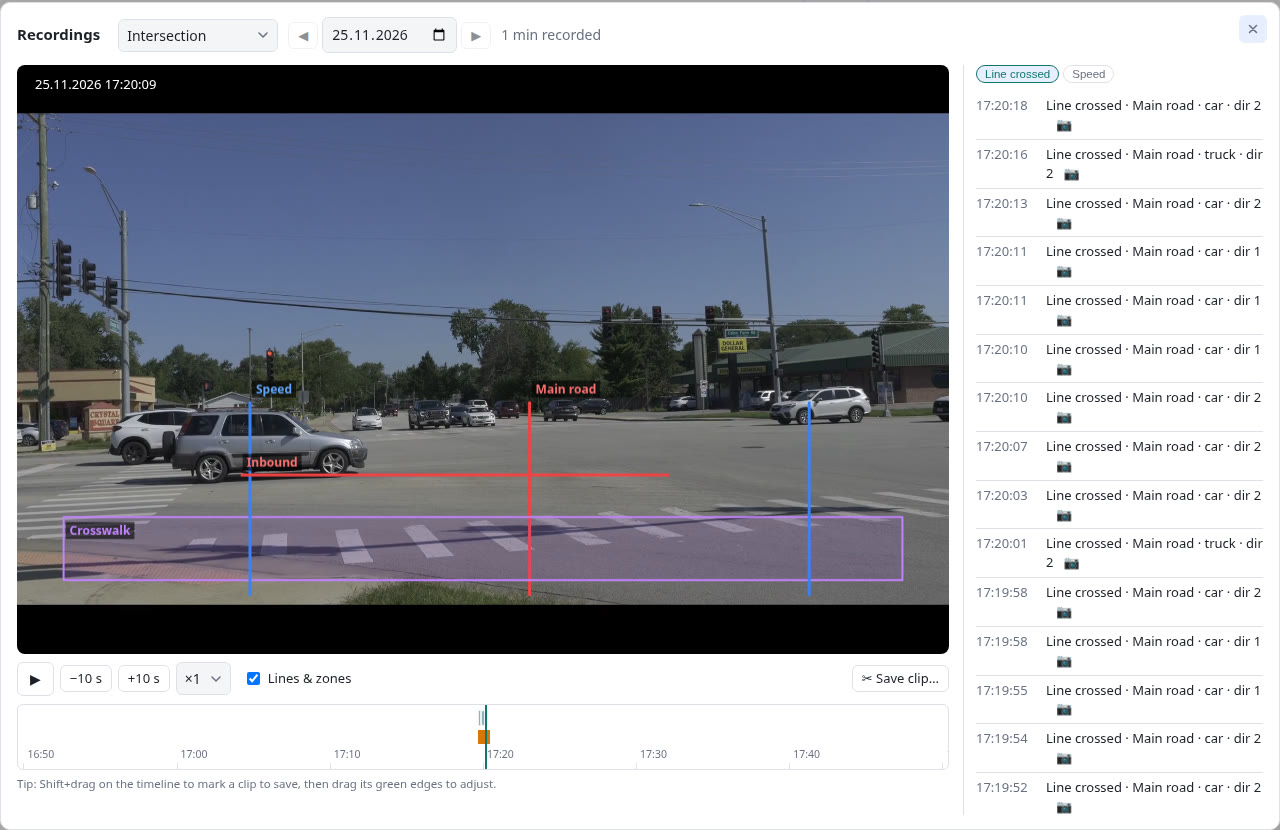
Open Recordings from the top bar, or ▶ Video on an event.
- Choose the camera and the day. The timeline shows what was recorded and the events on it.
- ▶, −10 s, +10 s and the speed buttons ×1 ×2 ×4 control playback. Click the timeline to jump.
- Lines & zones draws the camera's rules over the video, as they were at that time.
- Click an event in the list to jump to it.
Save a clip
Press ✂ Save clip…, or Shift+drag on the timeline to mark a part, then drag its green edges to adjust it. Set from and to (◉ now takes the current playback time) and press Save. The clip is downloaded as a video file.
Some camera codecs (for example H.265 in some browsers) cannot be played in the browser. Download the clip and play it in a video player.
Remote playback
From the Portal, recordings play over a direct encrypted connection to the computer. Remote playback needs a paid channel; recordings of a free camera stay on the computer and can be played there.
Updated · View as Markdown · Something missing? Ask us