
Event snapshots
Save a picture of the frame when chosen events happen, set the disk space, browse snapshots and download them with or without markup.
A snapshot is a picture of the frame at the moment of an event, kept on the computer. Snapshots let you check what was counted, prove an incident, and are attached to alerts and webhooks when you ask for it.
Turn snapshots on
- Open the camera's Settings → Snapshots.
- Under Save a snapshot for, tick the event types that should get a picture, for example Line crossed and Speed.
- Set Disk space for the snapshots of this camera, MB. When it is full, the oldest snapshots are deleted.
Events within 0.1 s of each other share one picture.
The folder for all snapshots is set in the computer's Settings (⚙ in the top bar). Changing it moves the saved snapshots to the new folder. The settings show the space used by all cameras and the free space on that disk.
View snapshots
- Click an event with 📷 in the Events list.
- Or open the Snapshots viewer from the top bar: choose a camera and a day, and step through the pictures with ◀ ▶.
- In the Portal, open an event on the Events page. The picture is fetched from the computer when you open it.
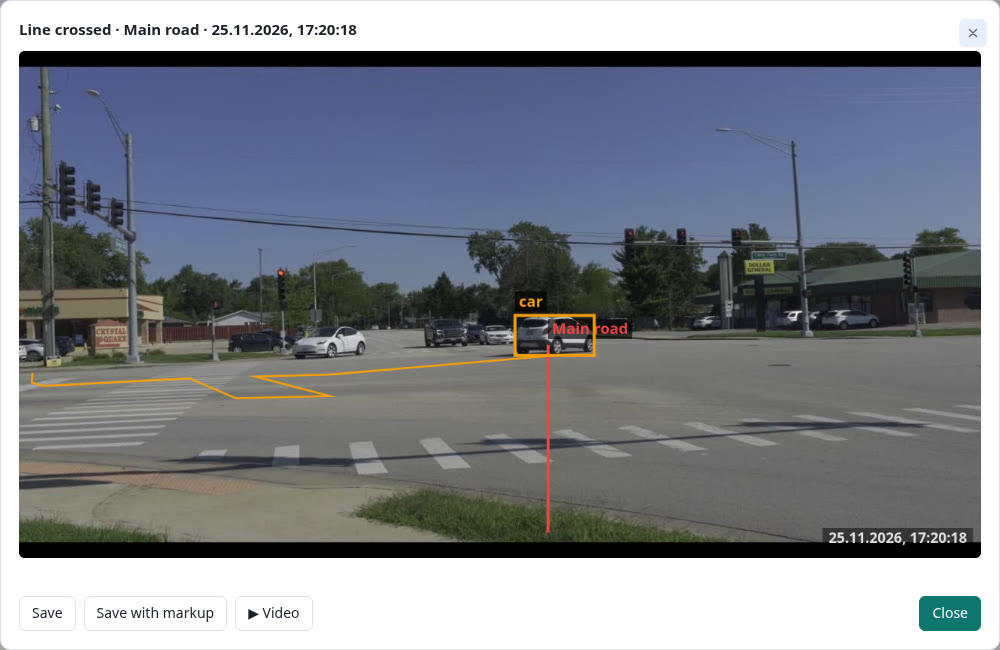
Download
- Save downloads the picture as it was taken.
- Save with markup downloads it with the line or zone and the object drawn on it, and the time stamped in the corner.
- ▶ Video opens the recording at this event, when the camera records.
Requirements
Snapshots are kept for cameras with a paid channel. A free camera keeps no event history and no event snapshots.
Updated · View as Markdown · Something missing? Ask us