
Team and permissions
Invite people to your CountVue Portal account, give them Viewer, Installer, Admin or custom permissions, limit them to some locations and dashboards, and transfer ownership.
An account can have many users. The owner has every permission; other members have the permissions you give them, and can be limited to some locations and dashboards. One person can be a member of several accounts and switch between them.
Invite someone
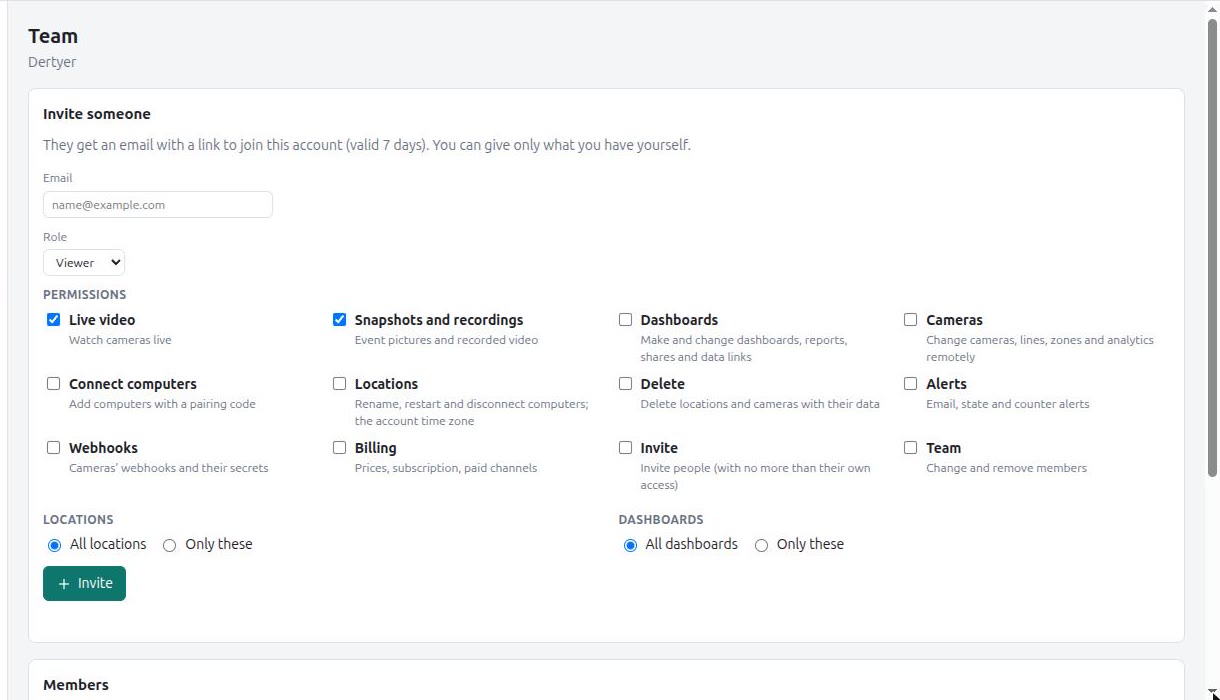
- Open Team. The Invite someone form is at the top.
- Enter their email.
- Choose a Role (or tick the permissions one by one) and, if needed, Only these locations and dashboards.
- Press Invite. They get an email with a link to join, valid for 7 days. If they have no CountVue account yet, they create one from the link.
You can give only permissions you have yourself. Pending invitations can be revoked.
Roles
| Role | Permissions |
|---|---|
| Viewer | Live video, Snapshots and recordings. Sees dashboards and reports |
| Installer | Viewer, plus Cameras, Connect computers, Locations. For the people who set up sites |
| Admin | Everything |
| Custom | Any combination |
| Owner | Everything; one per account |
Permissions
| Permission | Allows |
|---|---|
| Live video | Watch cameras live |
| Snapshots and recordings | Event pictures and recorded video, the Events page |
| Dashboards | Make and change dashboards, reports, shares and data links |
| Cameras | Change cameras, lines, zones and analytics remotely |
| Connect computers | Add computers with a pairing code |
| Locations | Rename, restart and disconnect computers; the account time zone |
| Delete | Delete locations and cameras with their data |
| Alerts | Email, health and counter alerts |
| Webhooks | Cameras' webhooks and their secrets |
| Billing | Prices, subscription, paid channels |
| Invite | Invite people, with no more than their own access |
| Team | Change and remove members |
| Clients | In a partner's account: open the client accounts and manage them |
Everyone in the team can see dashboards they have access to.
Change, remove, leave
- Change a member's role, permissions, locations and dashboards on the Team page.
- Remove takes their access away at once.
- A member can leave an account; only a new invitation brings them back.
- The Team page keeps a history of who invited, changed, removed or joined whom.
Transfer ownership
The owner can make another member the owner. The previous owner stays in the team as an Admin. Only the new owner can give ownership back.
Updated · View as Markdown · Something missing? Ask us