
Webhooks
Send every event of a camera to your own server as JSON, with optional snapshots, authorization, filters and a test call.
A webhook posts the events of a camera to an address you choose, as they happen. Use it to feed counts into your own software, a building management system, digital signage or an automation tool (Zapier, Make, n8n, Node-RED).
Webhooks are an option of the Live subscription: each camera that sends a webhook uses a Webhooks unit. Setting them up needs the Webhooks permission.
Set up a webhook
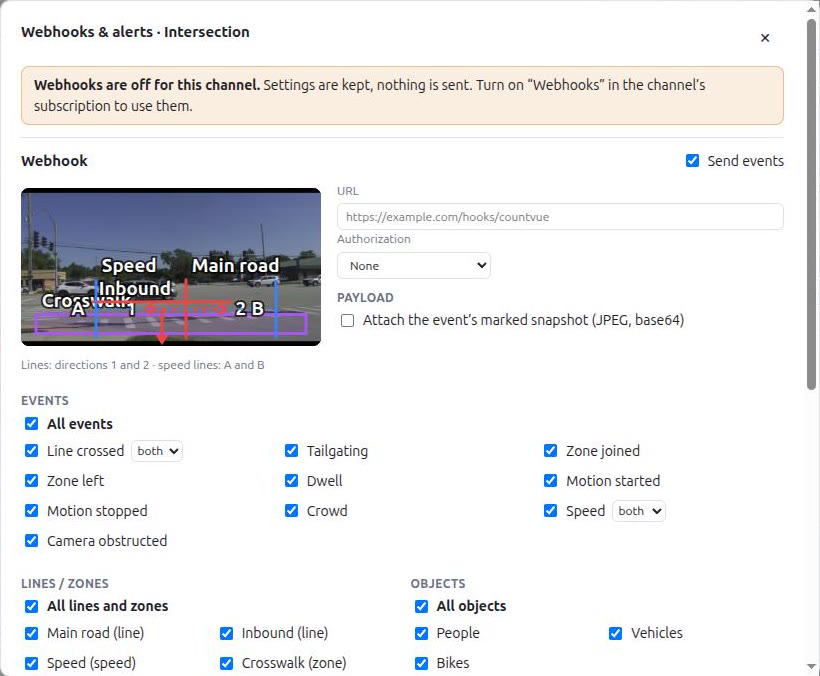
- On the location page, switch Webhooks on for the camera (it uses a Webhooks unit of your subscription), then press the ⚙ next to it to open Webhooks & alerts.
- Enter the URL of your endpoint (HTTPS recommended).
- Choose the Authorization: none, Basic (user:password) or Bearer token, and enter the credentials.
- Tick Send events and choose which to send: event types (lines and speed lines also by direction), lines and zones, objects.
- Tick Attach the event's marked snapshot (JPEG, base64) if you need the picture.
- Press Save webhook, then Send test: it posts one sample event to the saved URL.
Request
CountVue sends an HTTP POST with a JSON body. Events of a camera are sent in batches:
{
  "location": "Main store",
  "locationId": "loc_8c6f8f60734d2a47b995fd28",
  "camera": "Entrance",
  "cameraId": 3,
  "events": [
    {
      "event": "Line crossed",
      "type": "TripwireCrossed",
      "time": "2026-11-25T14:03:12Z",
      "localTime": "2026-11-25T15:03:12+01:00",
      "rule": "Door",
      "ruleId": "door",
      "direction": "forward",
      "object": "Pedestrian"
    },
    {
      "event": "Speed",
      "type": "Speed",
      "time": "2026-11-25T14:03:15Z",
      "localTime": "2026-11-25T15:03:15+01:00",
      "rule": "Speed 1",
      "ruleId": "s1",
      "object": "Vehicle",
      "class": "car",
      "speedKmh": 47.5
    }
  ]
}
| Field | Meaning |
|---|---|
event |
Event name as shown in the app: Line crossed, Zone joined, … |
type |
Event type: TripwireCrossed, RegionJoin, RegionLeave, Loitering, CrowdOn, Speed, … See Event types |
time |
UTC time, RFC 3339 |
localTime |
The location's local time |
rule, ruleId |
The line or zone name and id |
direction |
forward (direction 1) or backward (direction 2), for lines |
object |
Pedestrian, Vehicle, Bike, Face, Object |
class |
Vehicle type: car, van, truck, bus |
gender, age |
For faces |
speedKmh |
For speed events |
snapshot |
The marked JPEG, base64, when asked for |
test |
true on the batch sent by Send test |
The User-Agent names CountVue. With authorization set, the Authorization header carries Basic … or Bearer ….
Delivery
- Answer with any
2xxstatus within 15 seconds. - Each batch is posted once. If your endpoint is down, the batch is not retried; the panel shows the last error and its time, and the account owner gets an email when a webhook keeps failing.
- While the location is offline, its events wait on the computer and are sent when it reconnects.
- Events can arrive a few seconds after they happen, in batches.
Counter alerts can also call a webhook: see Counter alerts.
Updated · View as Markdown · Something missing? Ask us